AI video generation

AI video generator on Cherry AI

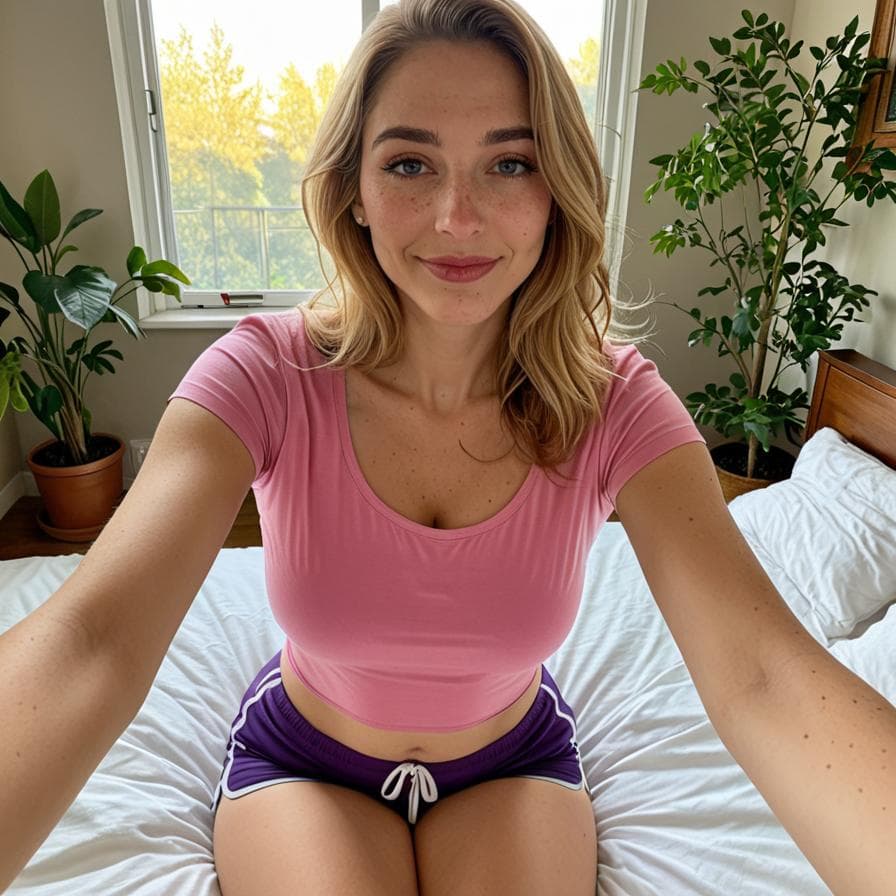
Cherry AI supports image-to-video creation: start with a generated image, open the video action, and use video tools such as HD, extend, remake, and upscale when you want more motion or quality.

  • Image-to-video creation flow
  • Energy-based video generation
  • HD, extend, remake, and upscale actions
  • Image generators as the starting point
Cherry AI AI video generator page preview

What you can do

Start from an image

Generate or open an image first, then use the video action to turn that starting frame into an AI video.

Use video actions

HD, extend, remake, and upscale actions help users improve or continue a video after the first generation.

Check energy before creating

Video generation uses energy, and advanced actions can use additional energy depending on the current product flow.

How it works

How image-to-video starts

Cherry AI video generation starts from an image, so the best path is to create or choose a strong starting frame before opening the video action.

  • Create the first frame

    Use image generators to make the character, scene, pose, and visual style that should guide the video.

  • Open the video action

    After choosing an image, use the video action to generate motion from that starting frame.

  • Refine the result

    Use remake, extend, HD, or upscale actions when the first video needs another pass, more duration, or higher quality.


What the video tools are for

The page explains the major video actions users may see without hardcoding costs or runtime settings that can change.

  • HD

    HD actions are for improving output quality when a higher-quality video result is needed.

  • Extend and remake

    Extend continues a video from an existing result, while remake gives users another attempt from the same general idea.

  • Upscale

    Upscale actions are for improving an existing video result when the product flow offers that option.

Energy and account context

Video generation is a creation action, so users should expect energy usage and account-specific availability to matter.

  • Videos use energy

    Generating videos and using advanced video actions can consume energy, so plan and energy surfaces stay linked.

  • Use public resources

    Cherry keeps resources, pricing, and trust pages close to the video-generation path.

  • Start with the right image

    A clearer source image usually gives the video model a better first frame for motion and visual consistency.

Product highlights

FAQ

How does AI video generation work on Cherry AI?

Start with an image, then use the video action. The image becomes the starting frame for the generated video.

Do AI videos use energy?

Yes. Video generation uses energy, and actions such as HD, extend, remake, or upscale can use additional energy depending on the current product flow.

Can I improve a generated video?

Video tools include HD, extend, remake, and upscale actions so users can continue or improve video results when those actions are available in the flow.

Start with Cherry AI

Move from the landing page into companion discovery, image creation, or plan review.